
Client Portal
A short guide on how to use the Client Portal.
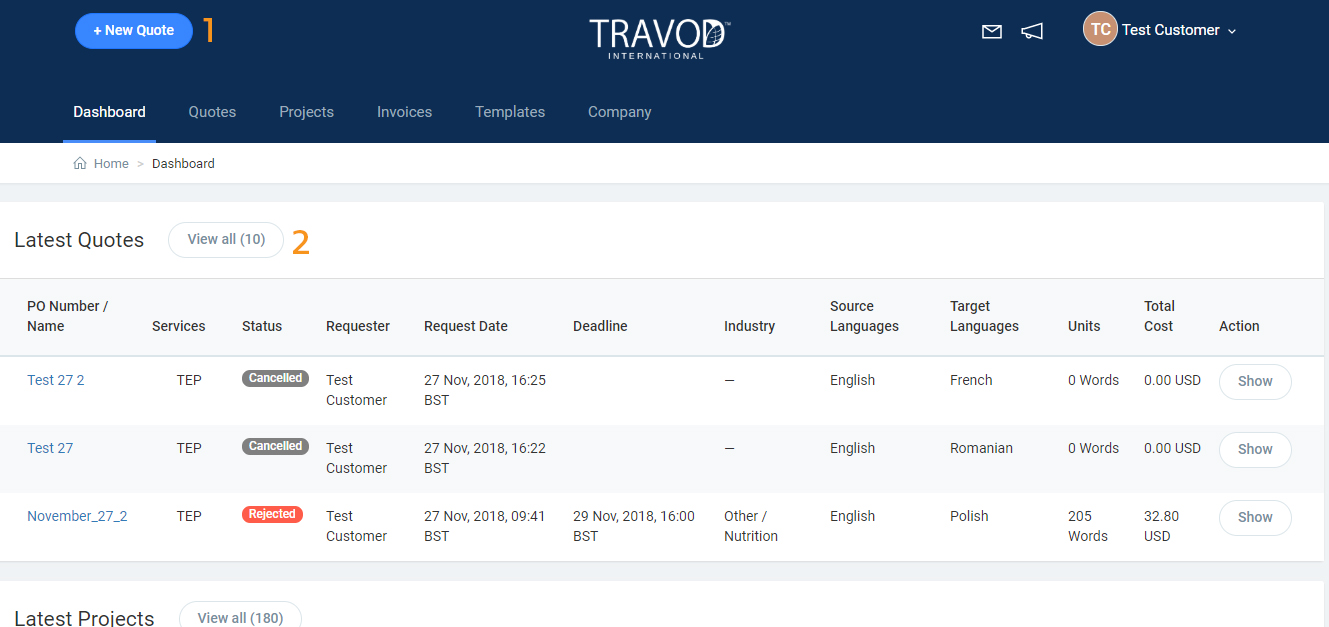
The main page to greet you in our system is the dashboard.
Things to notice:
Add “New Quote” button (1)
Dashboard previews (2):
-
- Latest Quotes
- Latest Projects
- Latest Invoices
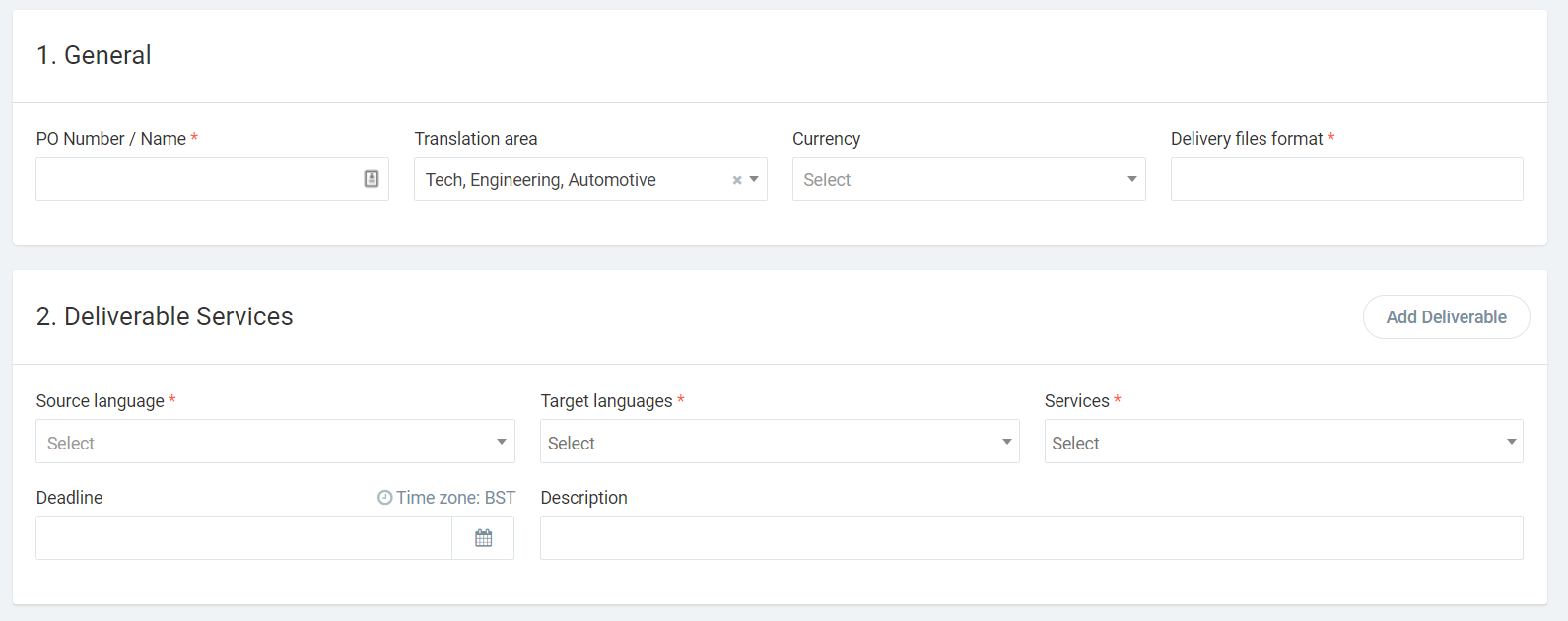
When creating a new quote, please pay attention to the mandatory fields (marked with *).
Also, in case there are more services required, use the “Add Deliverable” button(1)
| Field | Explanation | Example |
|---|---|---|
| 1. General | ||
| PO Number / Name | Mandatory: Your identifier of the project. Will help you find easier the project in the future. | DG 01 |
| Translation area | Optional: The type of content you want to translate. It helps us assign the right linguist. If not sure – leave it to us. We will identify the field and assign the appropriate linguist to the job. | Tech, Engineering, Automotive – means technical content. Marketing – covers brochures, website text, e-shots and social media. |
| Currency | Optional: Please choose the currency for the quote and for the invoice | EUR |
| Delivery file format | Mandatory: In a free form let us know in what format would you like to receive the translations | Original file format or PPTX |
| 2. Deliverable Services | ||
| Add deliverable | Press this button to add another section for Deliverable Services. This might happen if you have different instructions, for different languages | |
| Source language | Mandatory: The language of the original document | English |
| Target languages | Mandatory: The languages you need to translate into. You can select multiple languages. | French, German |
| Services | Mandatory: The level of service we will provide to you. Choose “Translation” if you need it for internal use and “Translation And Proofreading” if you’re going to publish the content | Translation And Proofreading |
| Deadline | Optional: Please let us know the deadline, which suits you best. We might propose you another deadline, taking into consideration the volume, the field and the level of service that you require | |
| Description | Optional: Use it if you add other Deliverable Services | Please send the French translation in DOCX format |
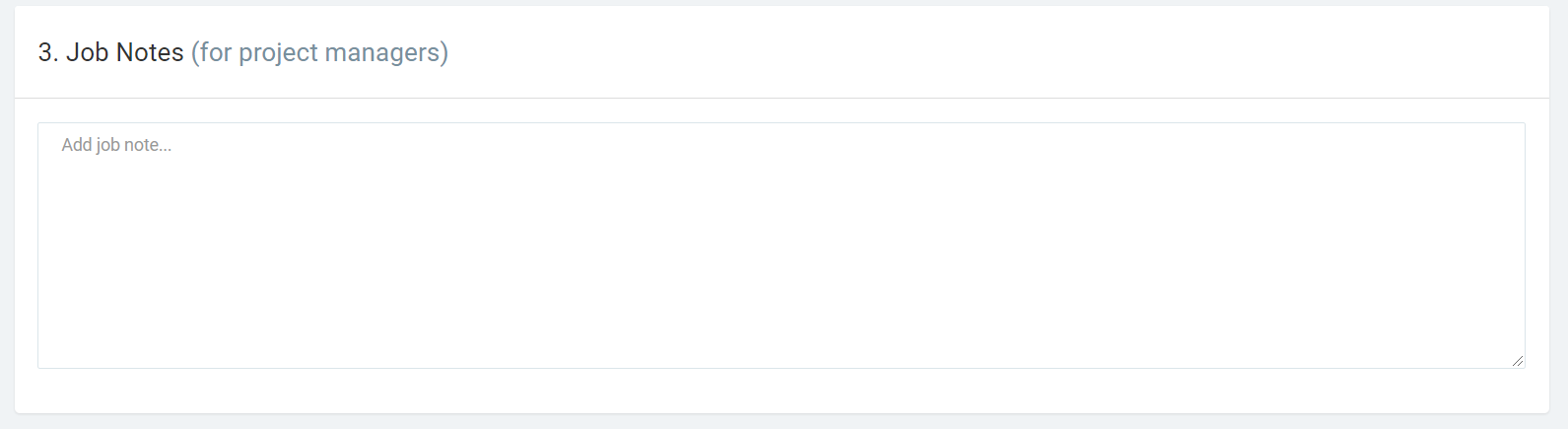
Another important field, of the Quote/Project form, is designed to guide the translation team (linguists and project managers) with the proper job instructions.
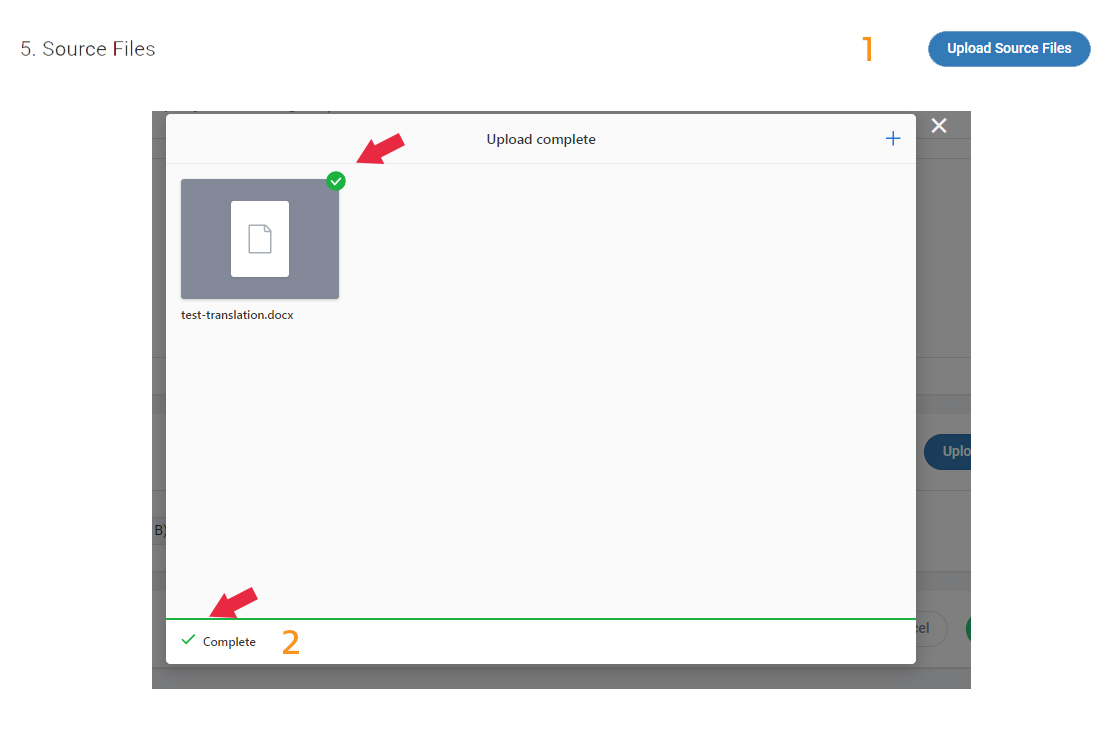
Press “Upload Source Files” and a new dialog window will open. You can either drag-and-drop your file on the dialog window or press “Upload”. You can drag over and upload multiple files at once.
As soon as all the files are uploaded, press “Create Quote” (2).
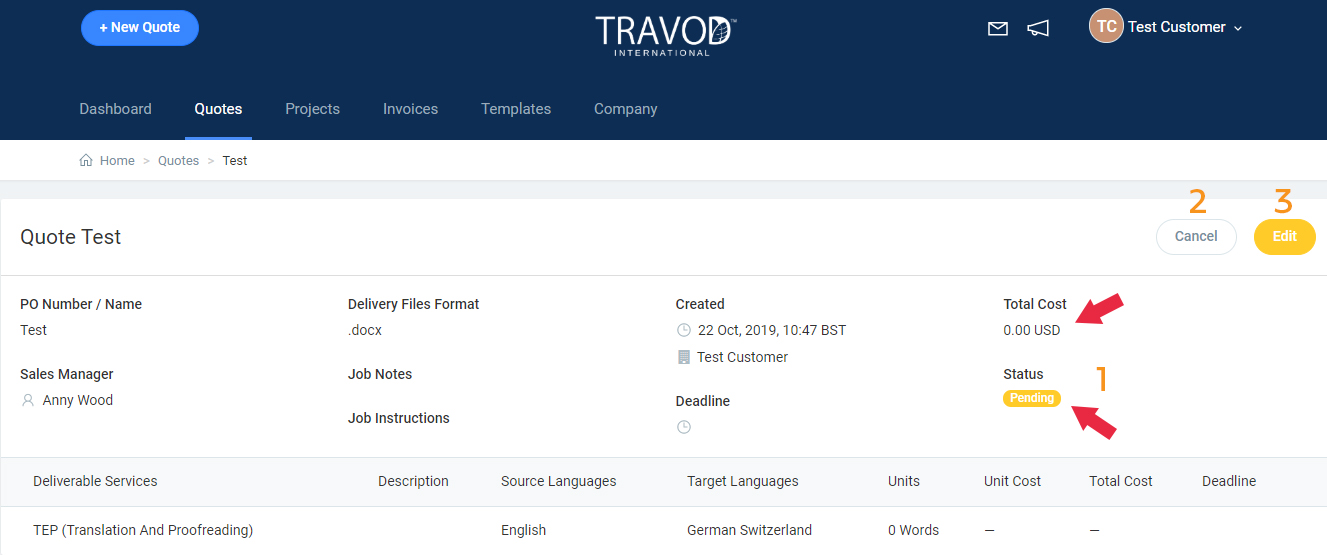
Once a quote is created, it will have the status “Pending” (1). The sales manager will then process it and reply with an offer.
You can still cancel (2) or edit (3) the quote, in case you have missed some details.
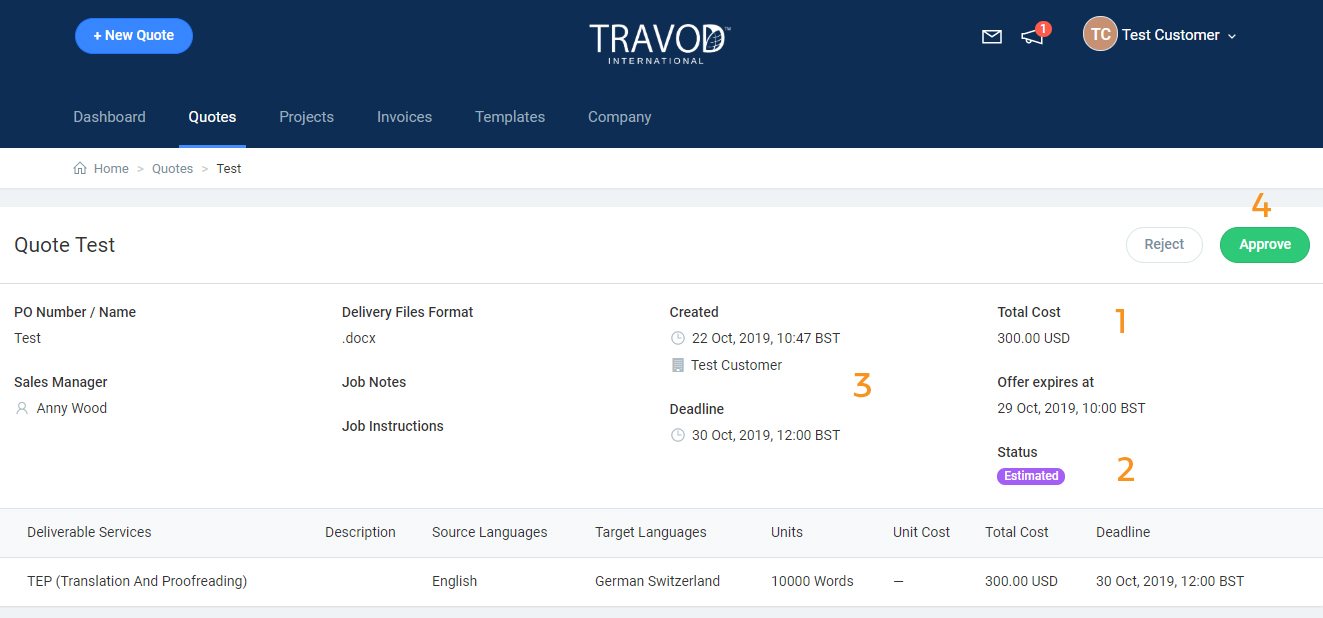
Once the quote has been processed by the sales manager, you’ll get an estimate with the cost (1) of the project. At this point the status will change to “Estimated” (2).
It’s important to notice that the offer isn’t indefinite and has a deadline when it expires (3).
Actions (4) available at this stage:
• Reject
• Approve –In this case, it will be converted to a project and we’ll start working on it.
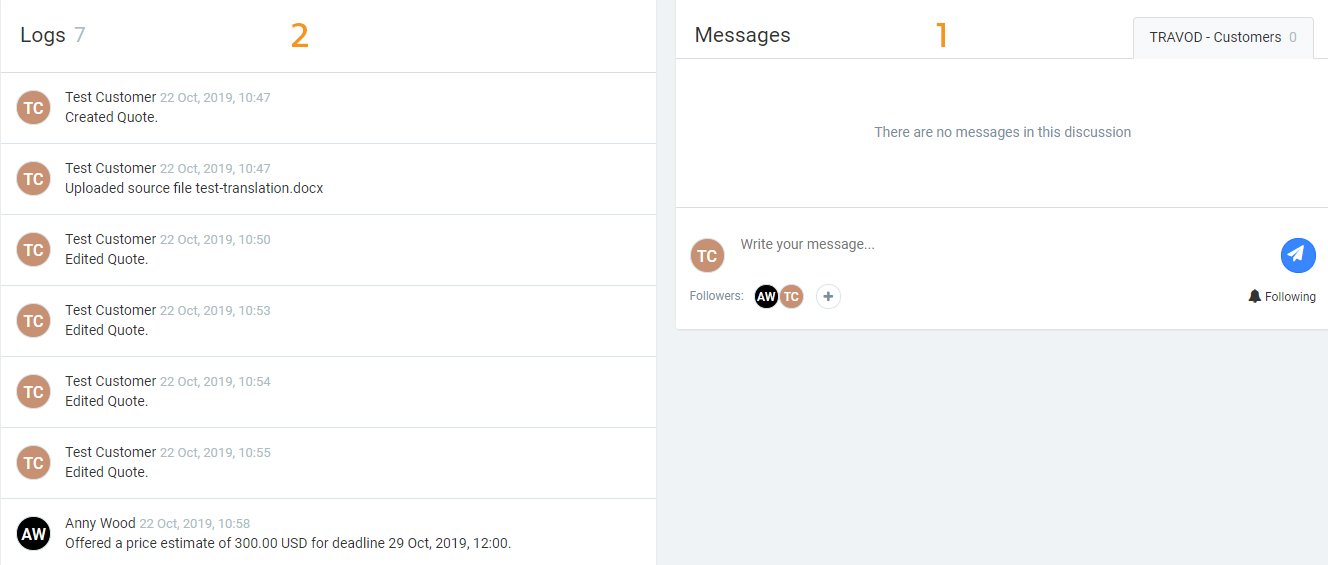
During the quoting process and then during project implementation, you can discuss the details with the sales manager by means of the Messaging box (1).
Additionally, you can see the timeline of action logs (2) shown in the adjacent box.
Both of these boxes are located at the end of the “Quote” page
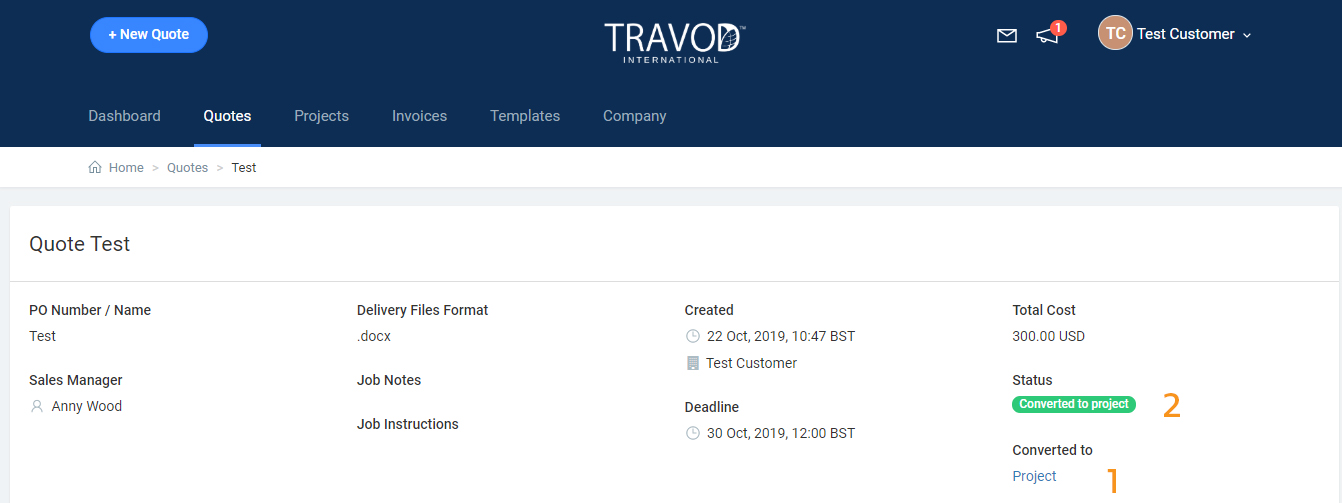
Once you have approved the Quote, the system will automatically create a project (1) and the status of the quote will change (2).
The quote will still be available in the list of quotes, but you’ll also have the respective project in the project list.
The system has two ways of communicating:
1. In-app notifications
2. E-mail notifications
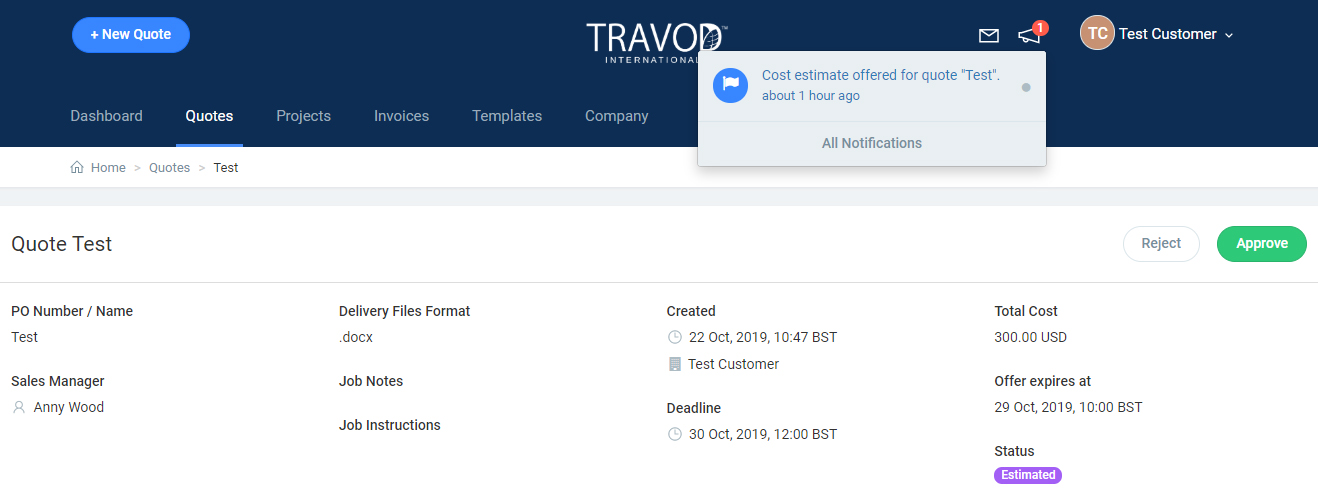
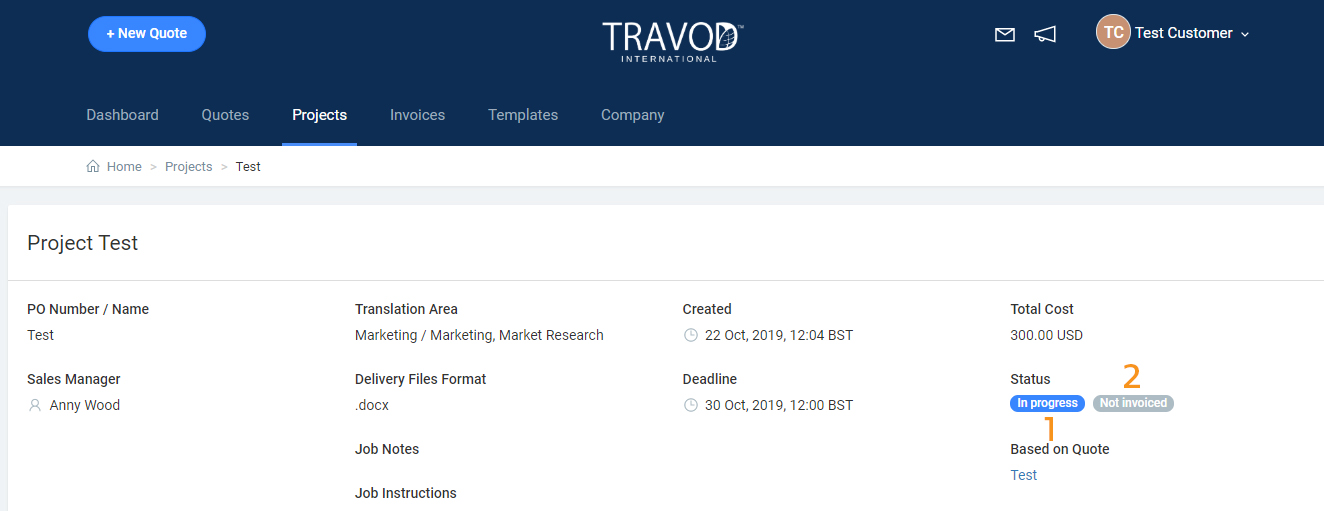
The projects have 2 status indicators:
1. Progress (1)
• In progress
• Delivered
• Approved
• In review
2. Invoice status (2)
• Not invoiced
• Invoiced / Not paid
• Fully Paid
• Partially paid
When the project has been finished, it will be marked as “Delivered” (1).
You can choose either of two actions (2):
1. Approve for invoicing –If you have checked it and everything is good.
2. Send project for review –If something isn’t okay. Use the messaging system to communicate what isn’t exactly right.
You’ll find the final documents in the “Delivered Files” section (3).
